Cutting Room overview
Bring exact video and audio Revisions into the Bin, assemble a constant-frame-rate hard-cut Timeline, save versioned cuts, and move selected Takes toward delivery.
A retained production room
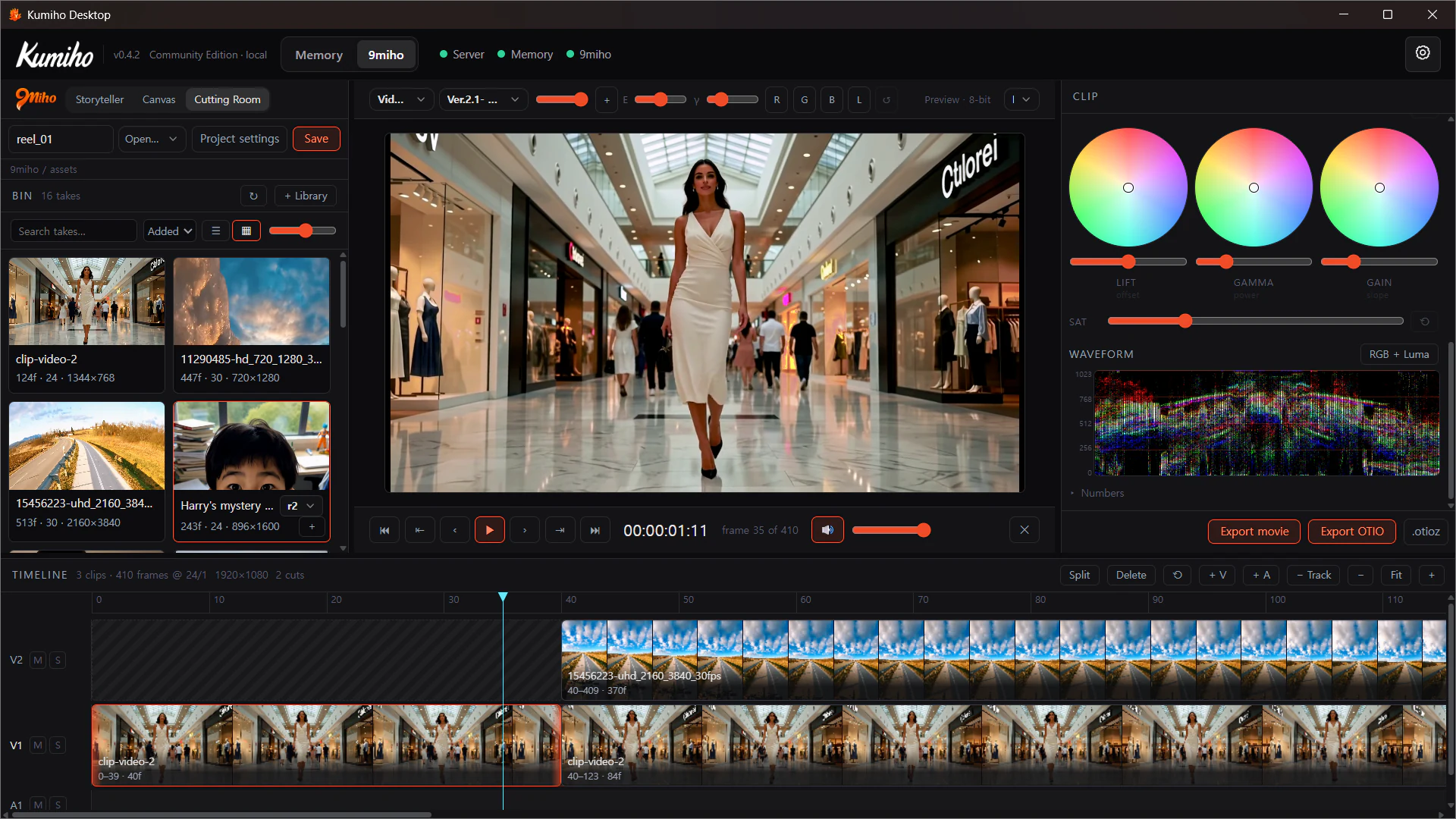
Cutting Room is a full-screen editing workspace inside 9Miho. Moving to another room hides it without unmounting the current session, so an unsaved cut survives normal room switching.
That protection has a clear limit: it is not browser-durable autosave. A reload or crash can lose an unsaved cut. Use Save to register a versioned cut that can be opened later.
Bring Takes into the Bin
There are three entry paths:
- an approved Storyteller video exposes Cutting Room and switches rooms with that exact Item Revision;
- Library or History can send pinned video and audio artifacts into the Bin while staying open for multi-selection;
- the Bin discovers current-Space video and audio assets for browsing.
The Bin provides search, Added/Name/Length sorting, List/Grid view, thumbnail size, refresh, + Library, double-click or + append, and a Take Revision picker.
Changing the Revision picker changes the Bin pin only. A Clip already placed on the Timeline retains its original immutable Revision, in/out range, and edit decisions.
Build the cut
The default project starts at 1920×1080, 24 fps, with V1 and A1. Add video or audio tracks as the sequence grows.
Current Timeline operations include:
- append from the Bin;
- drag and drop at an absolute time;
- overwrite the landing range;
- reorder or move a Clip across compatible tracks;
- trim the head or tail;
- Split;
- Delete with ripple behavior;
- preserve explicit gaps;
- undo up to 200 edit states.
Video follows a topmost-track-wins conform. Audio tracks sum, and measured embedded audio from video can join the mix. Track controls include selection, mute/solo, and an audio level fader.
Playback and navigation
Playback controls include cut start/end, previous/next cut, previous/next frame, play/pause, timecode, global mute, and volume.
Keyboard editing includes Ctrl/Cmd+Z, Shift+Ctrl/Cmd+Z for redo, S or Ctrl/Cmd+B for split, Delete, frame/cut navigation, and Home/End. The current interface exposes an Undo button; redo is keyboard-only.
Inspect the selected Clip
The Clip inspector reports edit and source evidence such as:
- source in, out, and conformed length;
- letterbox/conform state;
- measured frames and rate;
- codec, bit depth, chroma, raster, and audio facts;
- provenance tier and pinned source.
These facts help identify whether a generated Take is suitable for the intended Timeline. They do not silently transcode or repair an unsupported source.
Save and reopen a versioned cut
Save registers the OTIO cut as a versioned Library artifact with pinned source Revisions and DERIVED_FROM lineage.
The first Save creates a stable cut Item. Later Saves create another Revision of the same Item. Open a saved cut lists saved cut Items and loads the latest pinned Revision.
Current limitation: the Open picker does not expose the saved cut’s full Revision history. Take Revisions have a picker in the Bin; saved cut Revisions do not yet have an equivalent picker in the open dialog.
Deliberate editing limits
Cutting Room currently enforces a production contract that stays conformable:
- constant frame rate only; variable-frame-rate sources are refused;
- normal-speed playback and conform;
- hard cuts only;
- Contain scaling only;
- no transitions or creative retimes;
- no audio fades, pan, effects, automation envelopes, or loudness meters;
- no visible audio waveform display.
The editor includes strong assembly, inspection, colour, saving, and handoff tools without claiming to be a complete nonlinear editor, audio workstation, or final finishing suite.
Next step
Continue to Timeline, colour, and handoff for project settings, track behavior, colour controls, scopes, Movie Export, and the OTIO package boundary.