Nodes and connections
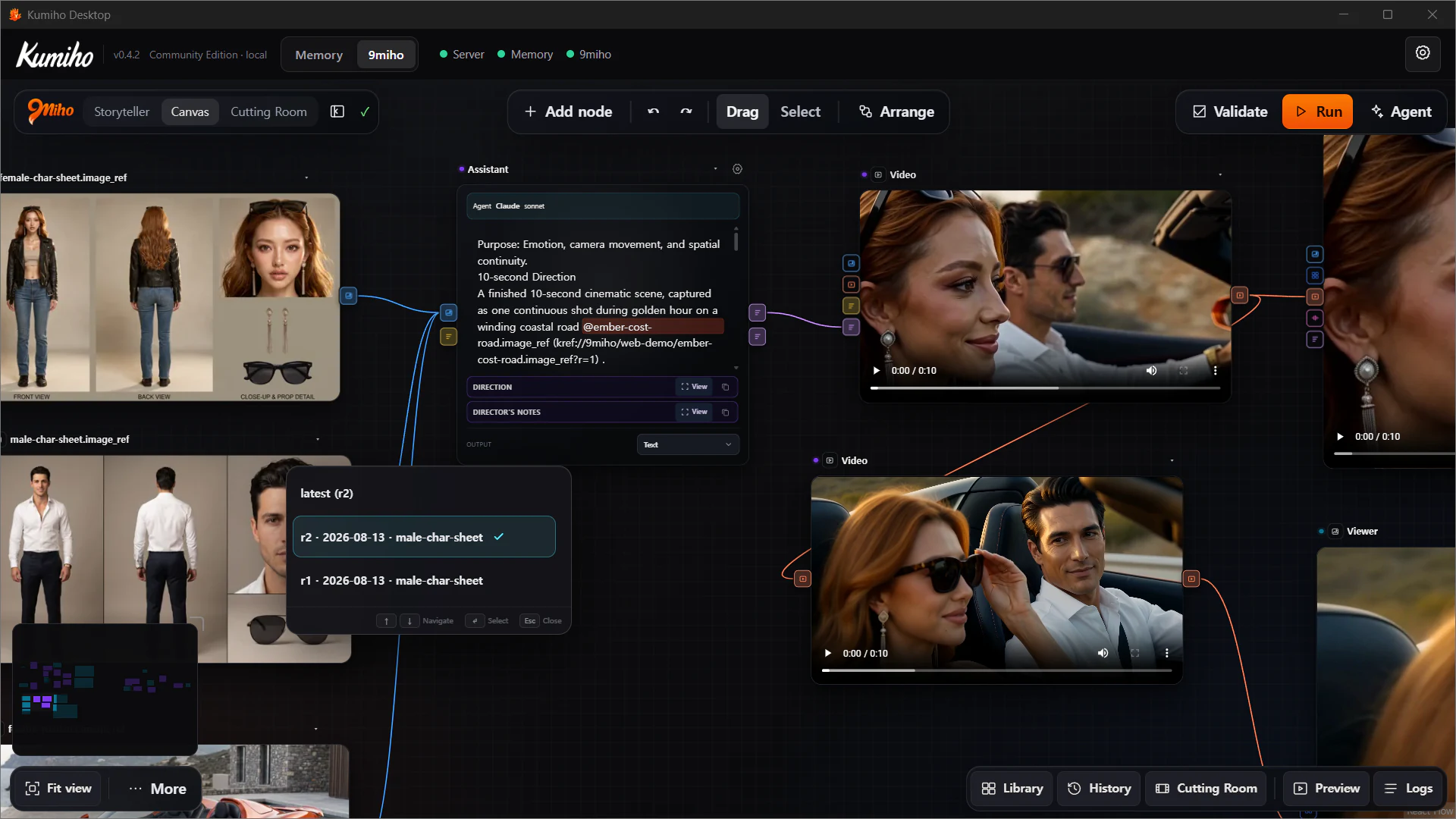
Create catalog-backed nodes, connect typed media ports, repair model changes without silent data loss, and organize a readable executable Flow.
Add a node where the work happens
Canvas offers several node-creation paths so graph authoring stays close to the current task:
- select Add node in the top bar;
- right-click or press
Spacefor the Add menu; - press
/to Search nodes; - double-click empty Canvas for Quick Add;
- drag a wire onto empty Canvas to show only nodes with a compatible input and automatically connect the selected result;
- use Paste node, Add note, or Create backdrop for reuse and organization.
Quick Add is compatibility-aware. It does not present a long unfiltered list after you begin from an Image or Video wire.
A node is a materialized capability
General node families such as Video, Generate Image, Audio, Assistant, Inpaint, Multi-view, Asset, List, and Viewer become concrete through the catalog.
When you choose a task/model Variant, Canvas materializes its declared:
- input and output ports;
- settings and allowed values;
- default values and UI labels;
- reference arity and media types;
- prompt or Direction seam;
- execution and price metadata.
Canvas intentionally does not guess arbitrary provider controls. If a control or reference port is not in the current Variant contract, the UI does not invent it.
Typed ports and connection rules
Visible plugs distinguish Image, Video, Audio, Image set, Prompt, Text, and Number. Before a connection enters the graph, Canvas rejects:
- a self-loop;
- an unknown or no-longer-live port;
- incompatible source and target types;
- a duplicate wire;
- a connection beyond the target port’s declared capacity.
Connecting a new source to a single-input port replaces the previous connection as one undoable action. Multi-input ports preserve the ordered collection declared by the graph.
Repair after a Variant change
Changing models is not merely changing a label. A new Variant may add, rename, or retire ports. If a retired port still has a wire, Canvas keeps the old handle visible as a repair state.
The connection remains explicit until you remove or reconnect it. Canvas does not silently drop the source, reinterpret an Image as another reference role, or pretend the graph is valid under the new model.
Use Validate after a Variant change. Node-level errors identify the exact missing or incompatible input.
Asset nodes and pinned references
Dragging a file into Canvas registers it before creating the Asset node. You can also use Choose from Library.
An Asset node offers two different contracts:
- latest resolves at run start — intentionally use the newest Revision at materialization time;
- Pin a revision — bind the Flow to an exact
rN.
References wired into an Assistant are the only assets it may mention. @asset chips retain their pinned Krefs even while the editor displays readable asset names. This prevents an agent from quietly reaching into unrelated Project media.
List and collection behavior
The List node builds an ordered collection of prompts, images, video, or audio. Rows can be included, excluded, and reordered.
Downstream behavior comes from the consuming contract:
- a singleton can broadcast across a compatible repeated input;
- compatible multiple lists can zip by position;
- an
eachconsumer runs items sequentially; - video reference collections can distinguish Together from Each image.
List execution is bounded, visible work—not an unlimited unattended fan-out system. A full visual for_each child-graph authoring interface is not part of the current Canvas.
Viewer and output surfaces
A Viewer inspects a bound Asset without starting generation. Node output bodies can display image, video, audio, text, or a multi-Take gallery.
Collections remain collections. Canvas does not silently collapse a list of Takes to whichever carousel item happens to be visible. A downstream single-asset input may refuse an ordered set unless the graph provides an explicit compatible selection.
Arrange a readable Flow
Use Drag and Select modes, Arrange, the minimap, Notes, and Backdrops to make the Flow readable.
Backdrops are layout-only. They do not create batch scope, execution containment, or child graphs. Visual grouping can explain the workflow without changing what runs.
Common shortcuts and graph operations are undoable. Loading a named Template replaces the Canvas as one undoable action rather than merging an ambiguous second graph into the current one.